Dev Mode
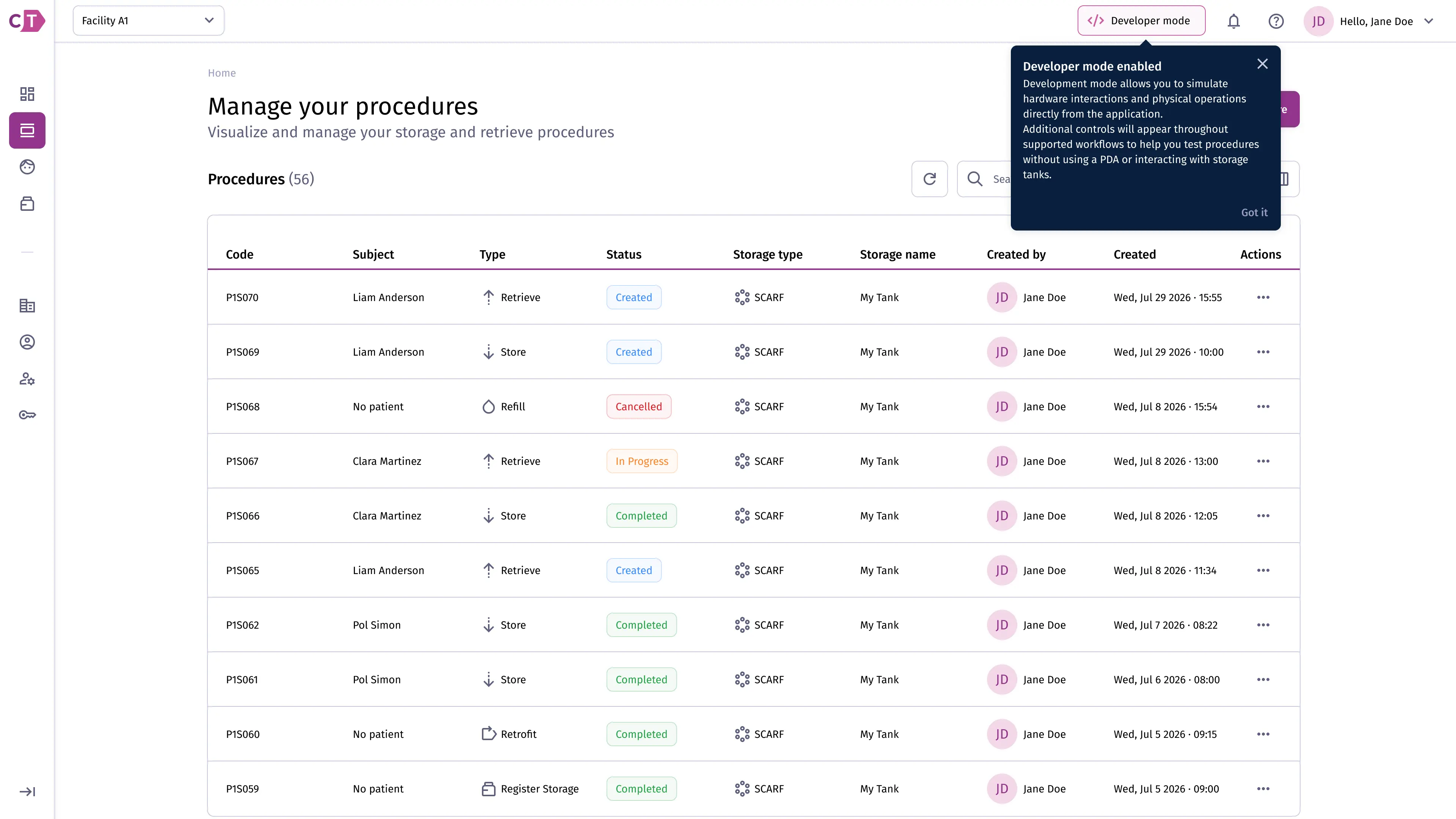
Developer mode allows you to simulate hardware interactions and physical operations directly from the web application. It is intended for testing and onboarding scenarios where physical devices or storage tanks are not available. Dev Mode is only available in development-authorized environments and cannot be enabled in production.
When enabled, additional controls appear throughout supported workflows so you can complete procedures without using a physical device or interacting with storage hardware.
Enabling Dev Mode
Section titled “Enabling Dev Mode”To enable developer mode, open the user menu in the top navigation bar and toggle Dev mode on.
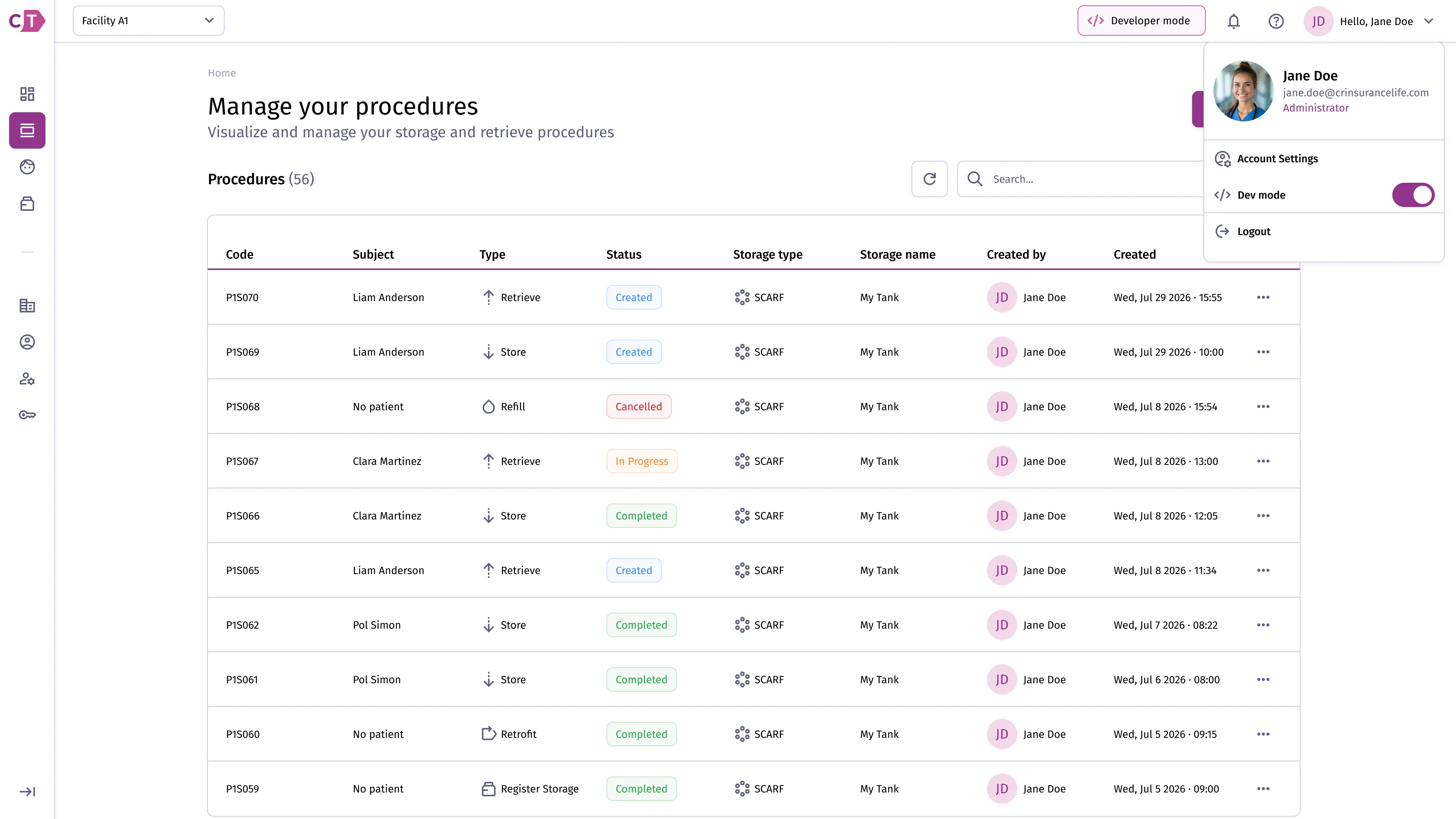
When activated, a Developer mode badge appears in the top navigation bar as a reminder that simulated operations are in effect.
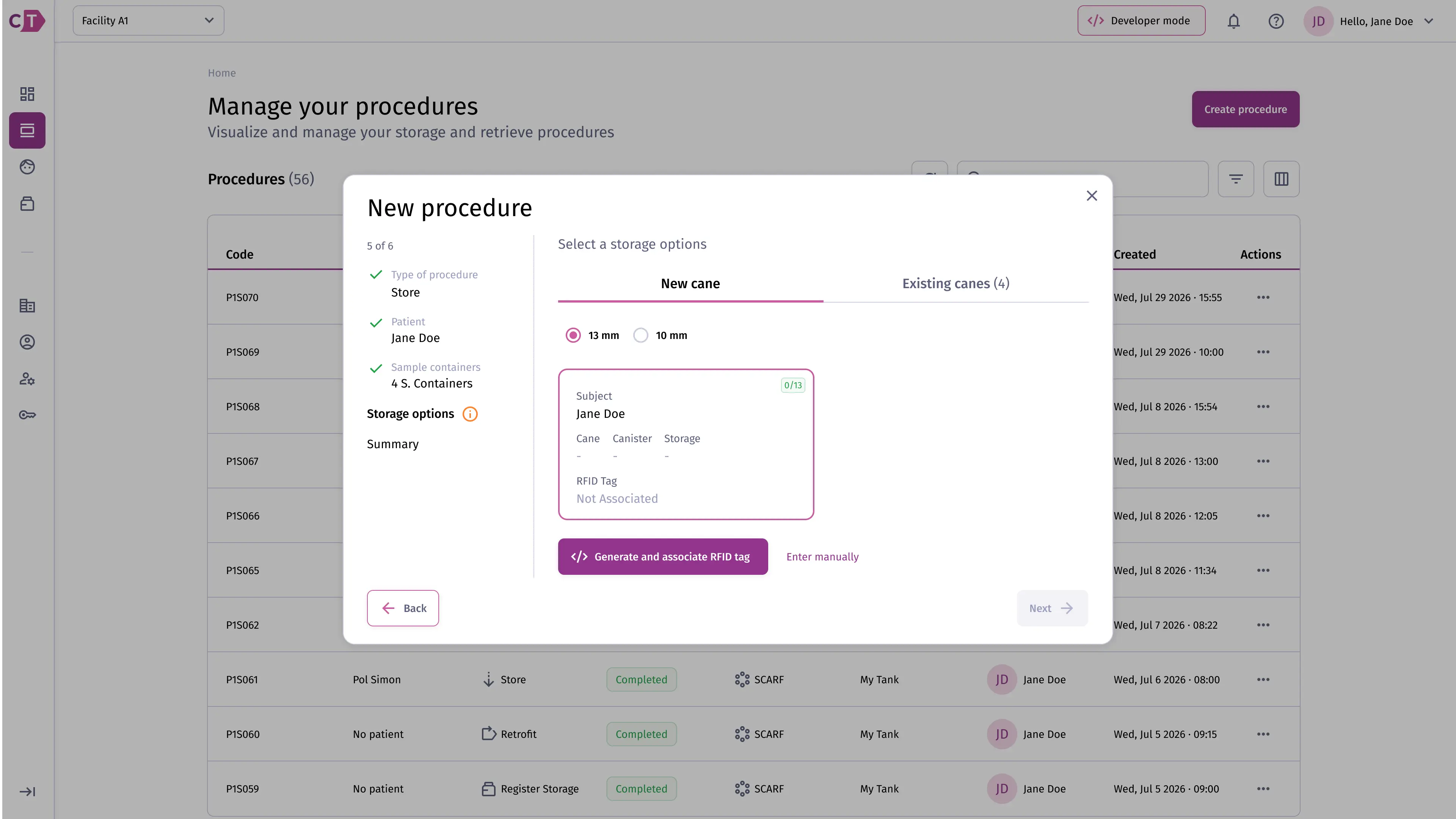
Creating a procedure in Dev Mode
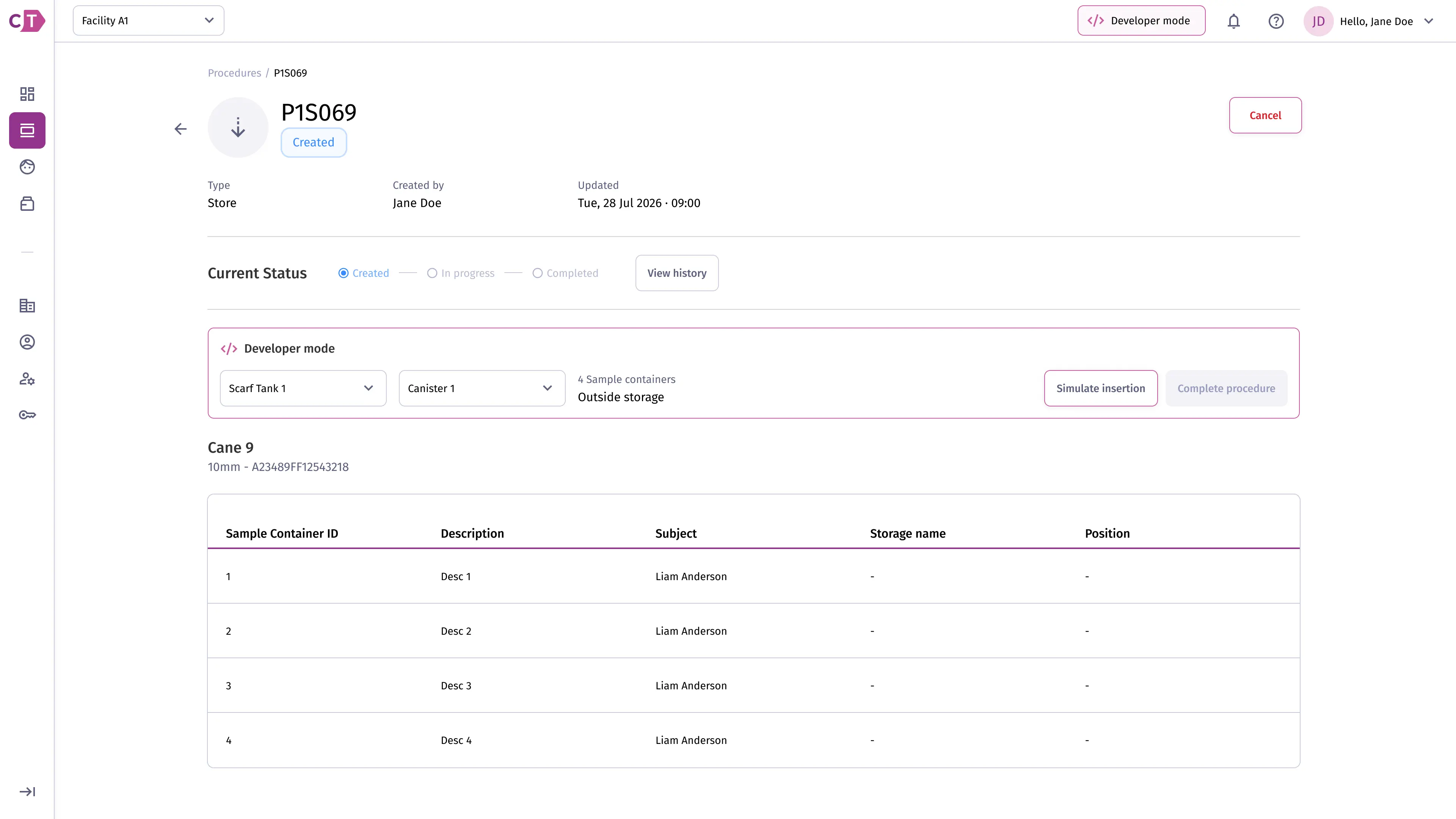
Section titled “Creating a procedure in Dev Mode”During procedure creation, Dev Mode adds a Generate and associate RFID tag button to the storage options step. This lets you assign a simulated RFID tag to a cane without scanning a physical tag.
Viewing procedure details in Dev Mode
Section titled “Viewing procedure details in Dev Mode”On the procedure details page, a Developer mode panel appears below the status bar. From this panel you can select a storage tank and canister, then simulate the physical insertion step or mark the procedure as complete directly, bypassing the need for device interaction.