Users
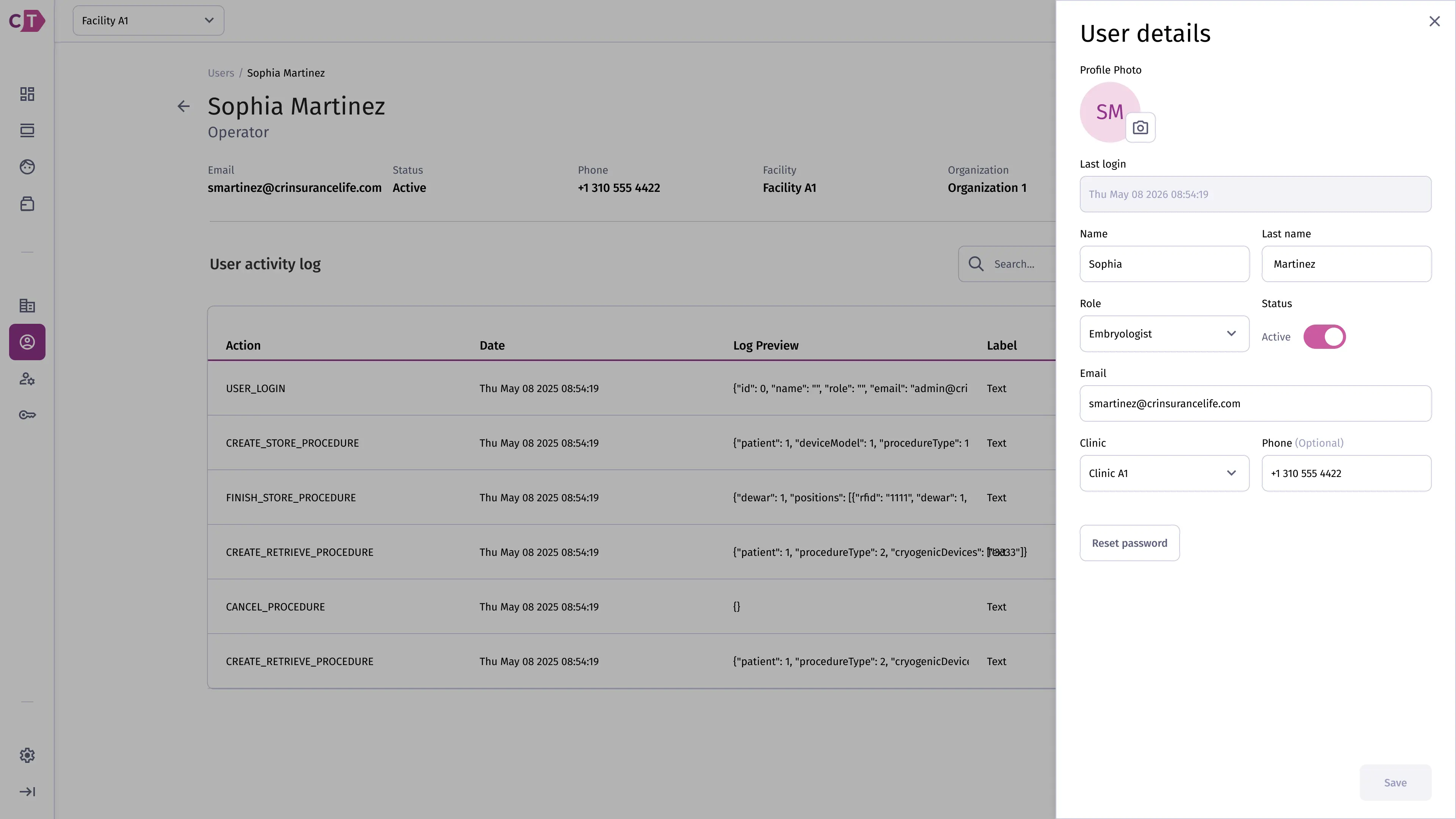
The users section allows administrators to manage who has access to the platform and what they can do. You can create users, assign roles, and control account status.
Listing users
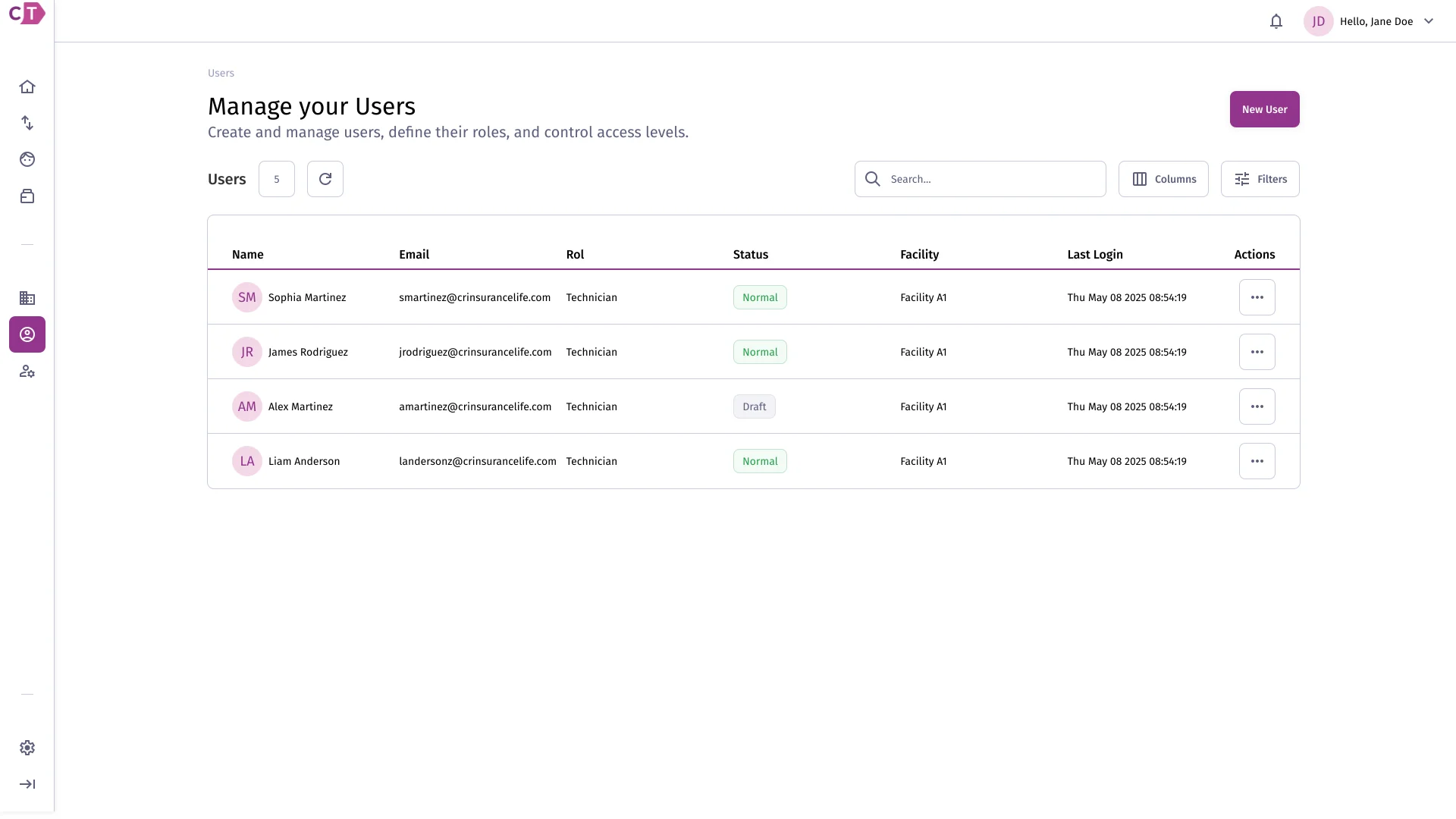
Section titled “Listing users”The users list shows all members of your organization. Each entry displays the user’s name, email, assigned role, and account status.
Creating a user
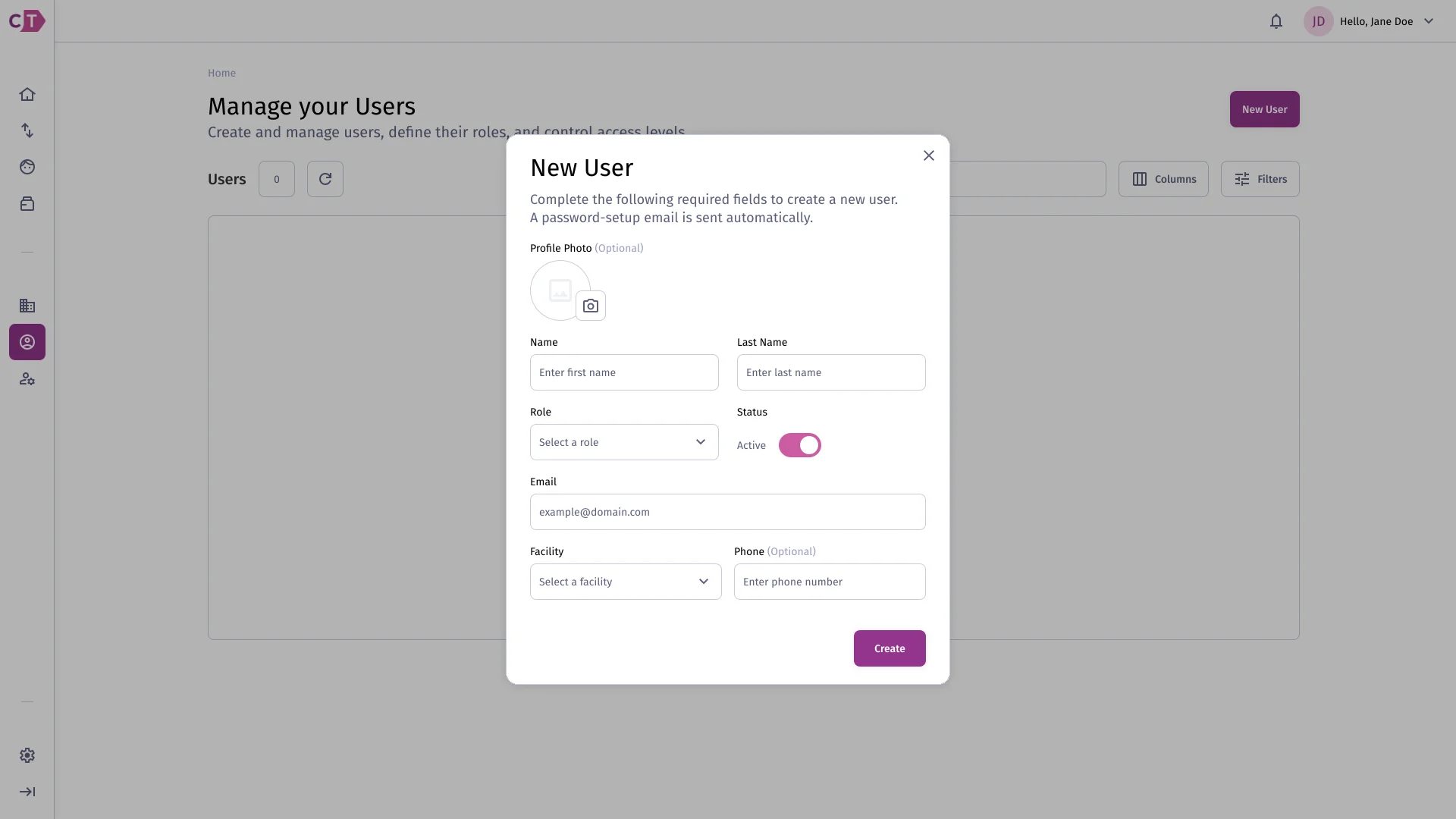
Section titled “Creating a user”To add a new user, click New user and fill in their name, email address, and assigned role. An invitation will be sent to the provided email.
Accessing user actions
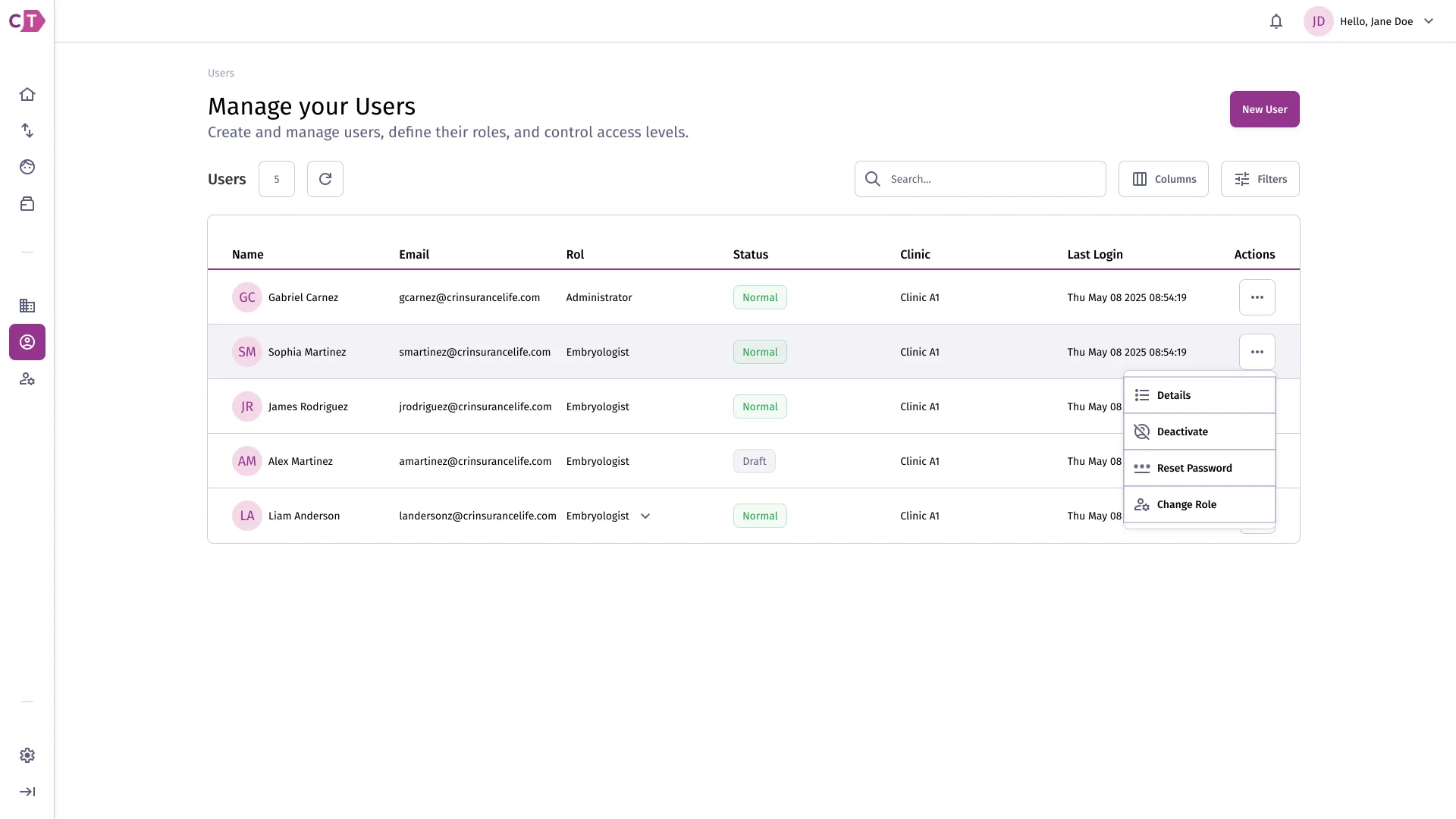
Section titled “Accessing user actions”The actions menu provides quick access to all available operations for a user, including role changes, deactivation, password reset, and deletion.
Changing a user’s role
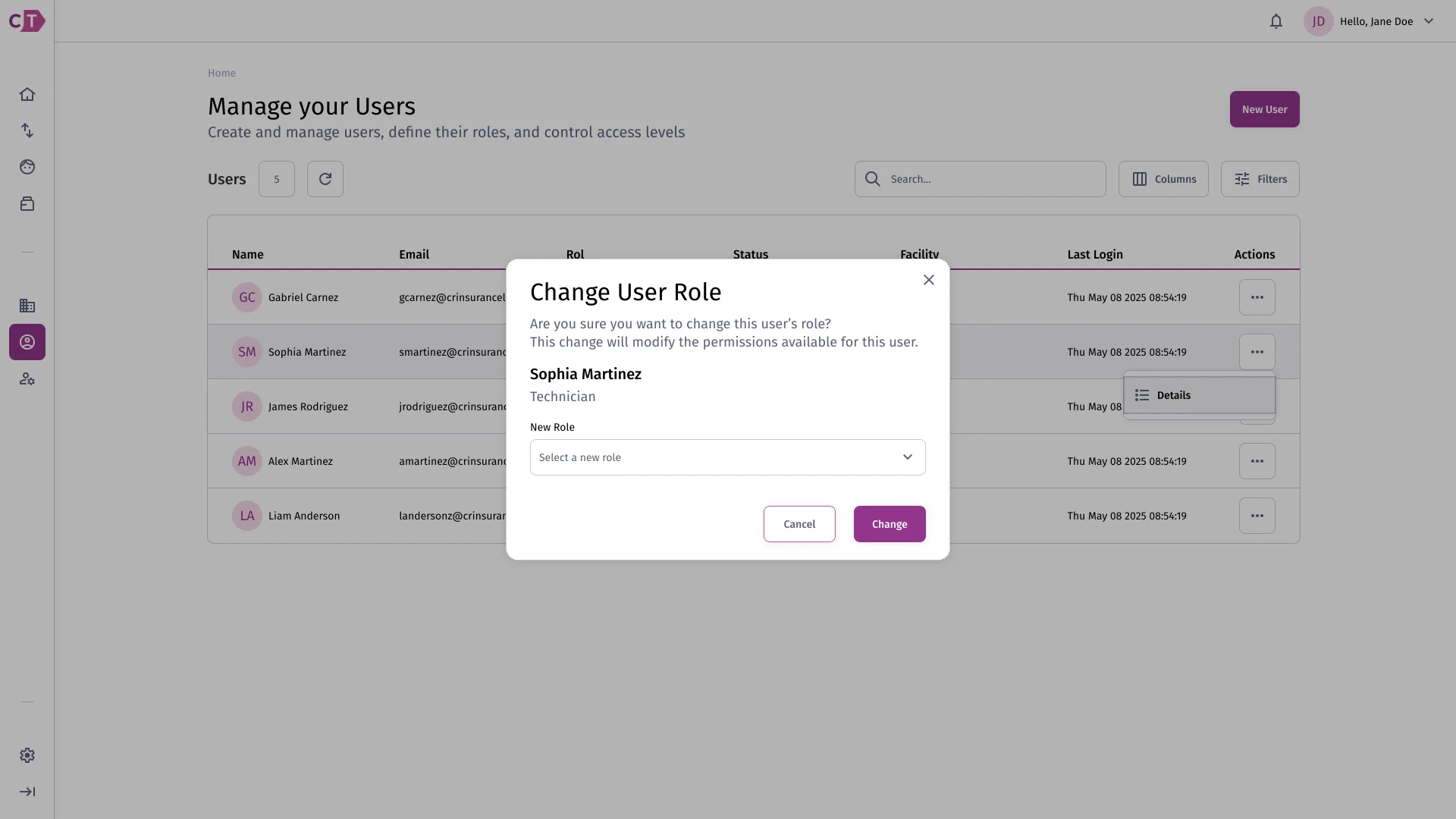
Section titled “Changing a user’s role”To change the role assigned to a user, select Change role from the user’s actions menu and choose the new role.
Deactivating a user
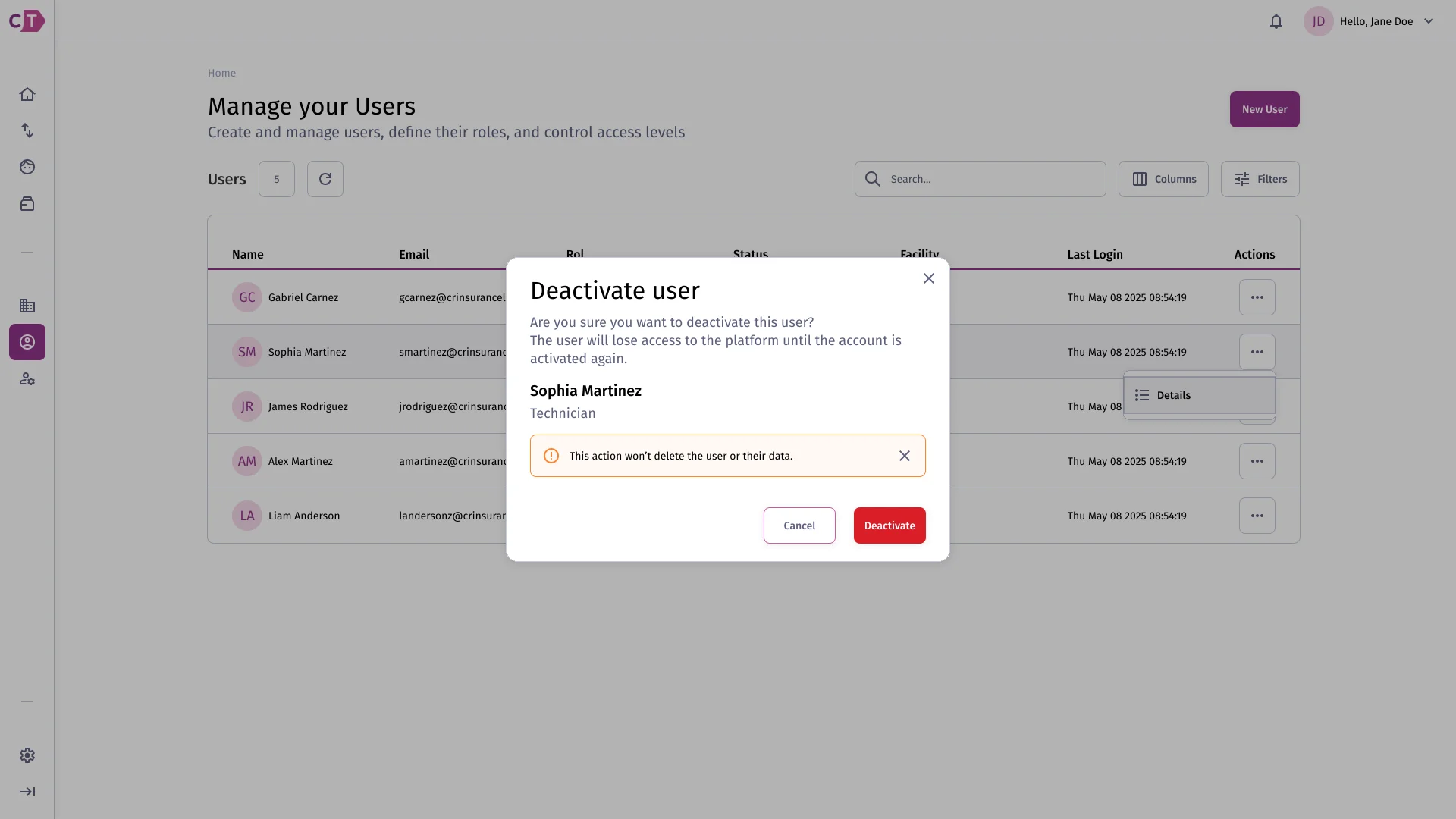
Section titled “Deactivating a user”Deactivating a user prevents them from logging in without permanently removing their account. Select Deactivate from the user’s actions menu.
Deleting a user
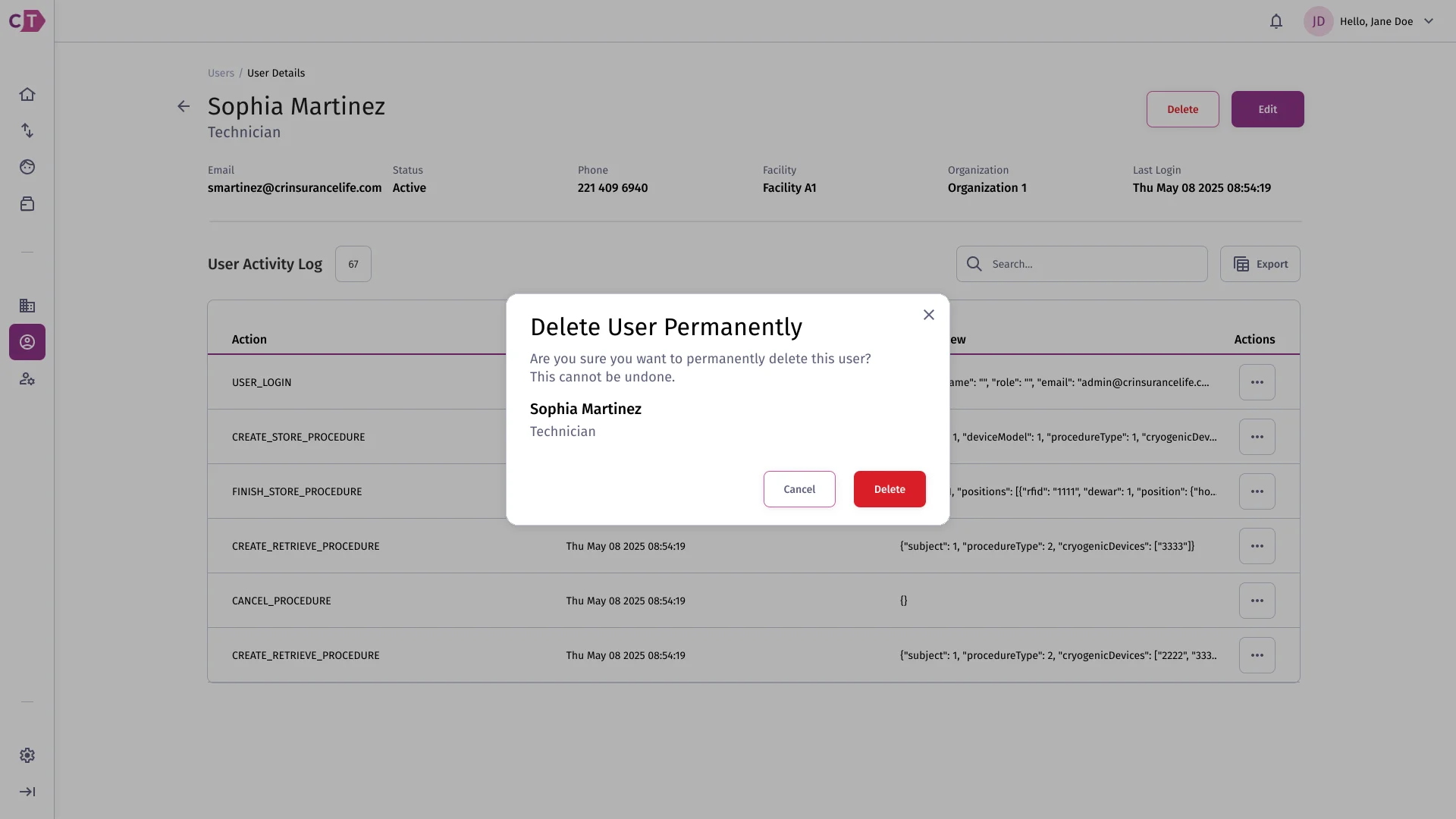
Section titled “Deleting a user”To permanently remove a user from the organization, select Delete from the user’s actions menu. This action cannot be undone.
Resetting a password
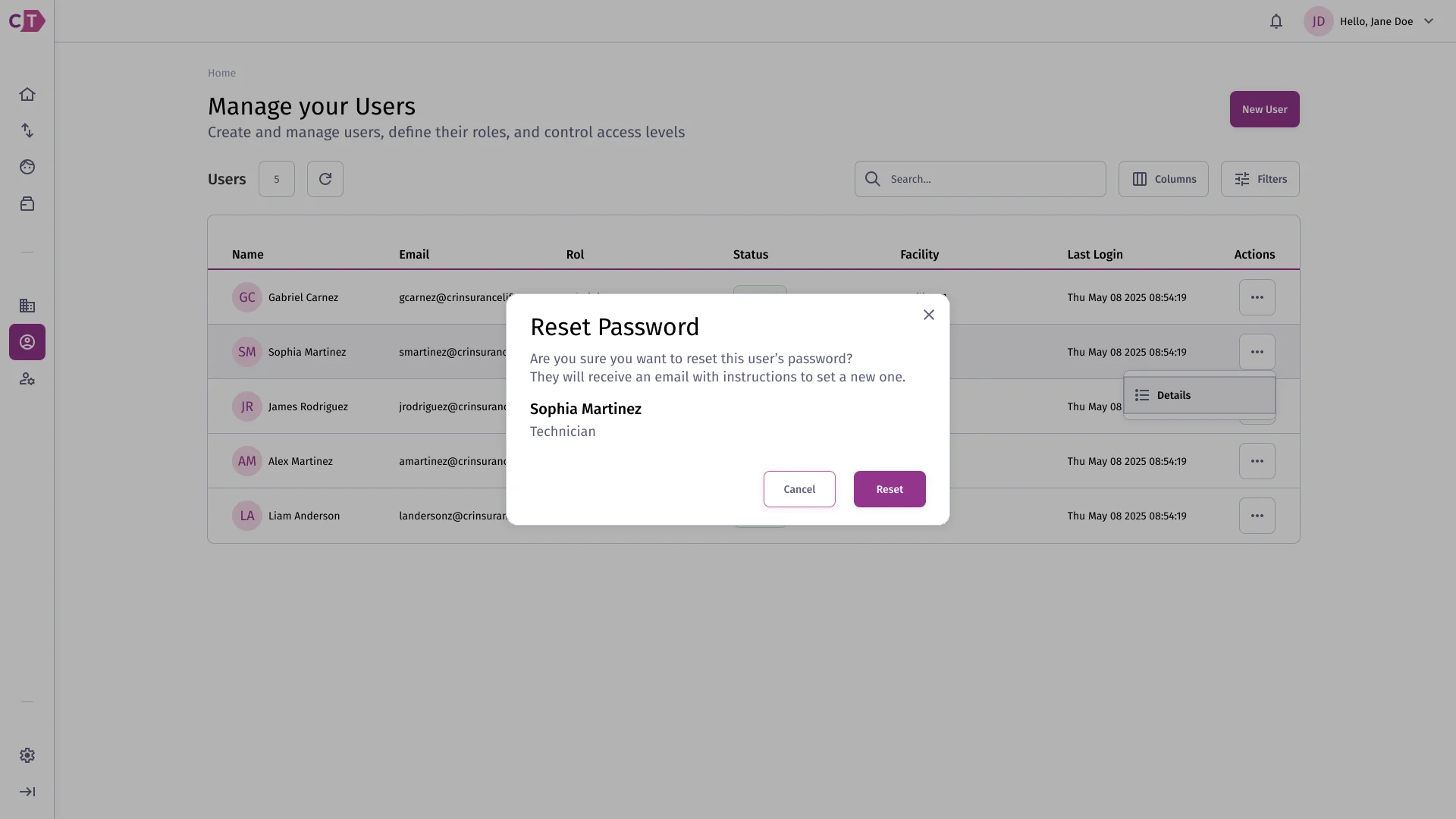
Section titled “Resetting a password”To send a password reset email to a user, select Reset password from the user’s actions menu.
Viewing the activity log
Section titled “Viewing the activity log”The activity log on the user detail page shows a history of actions performed by or on that specific user, including logins, role changes, and account status updates.